
Table of Contents
Introduction #
QwertyZen Community Edition is a PC application that turns your keyboard and mouse into a musical instrument. The application has two parts
- The Graphical User Interface (GUI) – Settings, configuration, and visual feedback.
- The Keyboard User Interface (KUI) – Note layout, real time musical interaction.
When you run the application for the first time you are presented with the GUI with defaults enabled, ready to make sound.
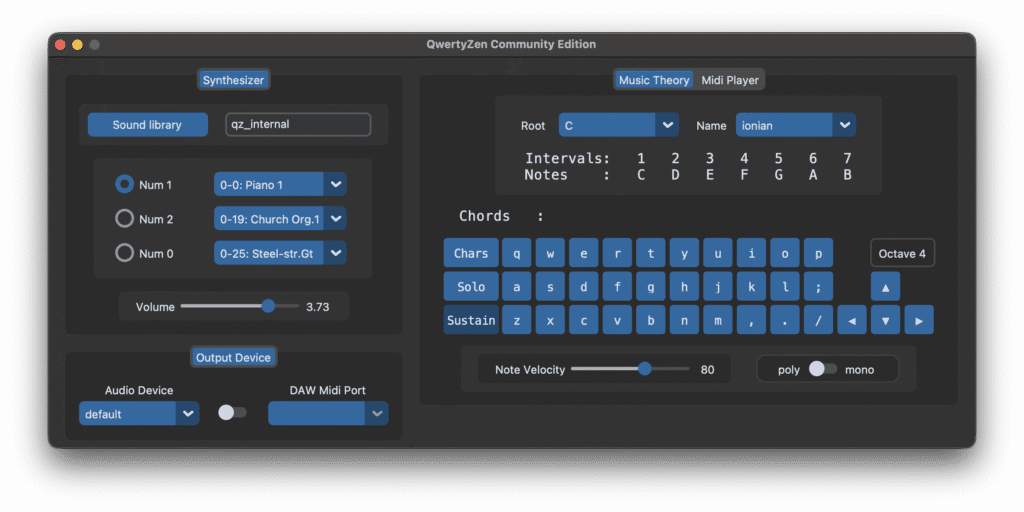
Main GUI #
The GUI is laid out into four sections
- Synthesizer
- Output Device
- Music Theory
- Midi Player
Synthesizer section #
The synthesizer section has three main controls
- Soundfont selection and management
- Instrument and channel selection
- Synthesizer volume (a.k.a Gain)
Output Device section #
The output device section has three main controls
- The output device selection toggle – Selects between audio output or MIDI output
- Audio Device dropdown menu – Lists available audio devices
- DAW Midi Ports dropdown menu – Lists available MIDI ports
Music Theory section #
The music theory section has three main parts
- The scale selection
- Chord detection and virtual keyboard
- Note modifiers for note velocity and poly/mono mode
MidiFile Player section #
- MIDI file selection and management
- MIDI player volume
- Loop count
- Playback controls
Keyboard User Interface (KUI) #
Main Key mapping #
Note layout #
- q to p – Represent the high octave of notes
- a to ; – Represent the middle octave of notes
- z to / – Represent the low octave of notes
- ▲/▼ – Move octave of note layout higher or lower
- ◀︎/▶︎ – Rotate the scale lower or higher. Changes the mode of the scale layout.
- backspace – Reset the note layout to default range.
Instrument selection #
- 1, 2 – Activate instrument 1 or 2
- 0 – Activate drum mapping layout
Expressive controls #
- esc – MIDI Panic. Stop all sound.
- shift – Represents the sustain pedal.
- caps lock – Toggle normal/legato playing. In monophonic mode, toggle between legato/slide.
- F1 – Set output to audio device.
- F2 – Set output to MIDI port.
- F3 – Set playing mode to polyphonic.
- F4 – Set playing mode to monophonic.
MIDI player controls #
- enter – Toggle play/pause the MIDI file player
- shift + enter – Play selected MIDI file from beginning.


