
MacOS supports sending MIDI messages between two running apps using virtual MIDI ports. These can be easily activated by accessing the Audio/MIDI Setup window. By the end of these instructions you will be ready to record MIDI from QwertyZen Community Edition.
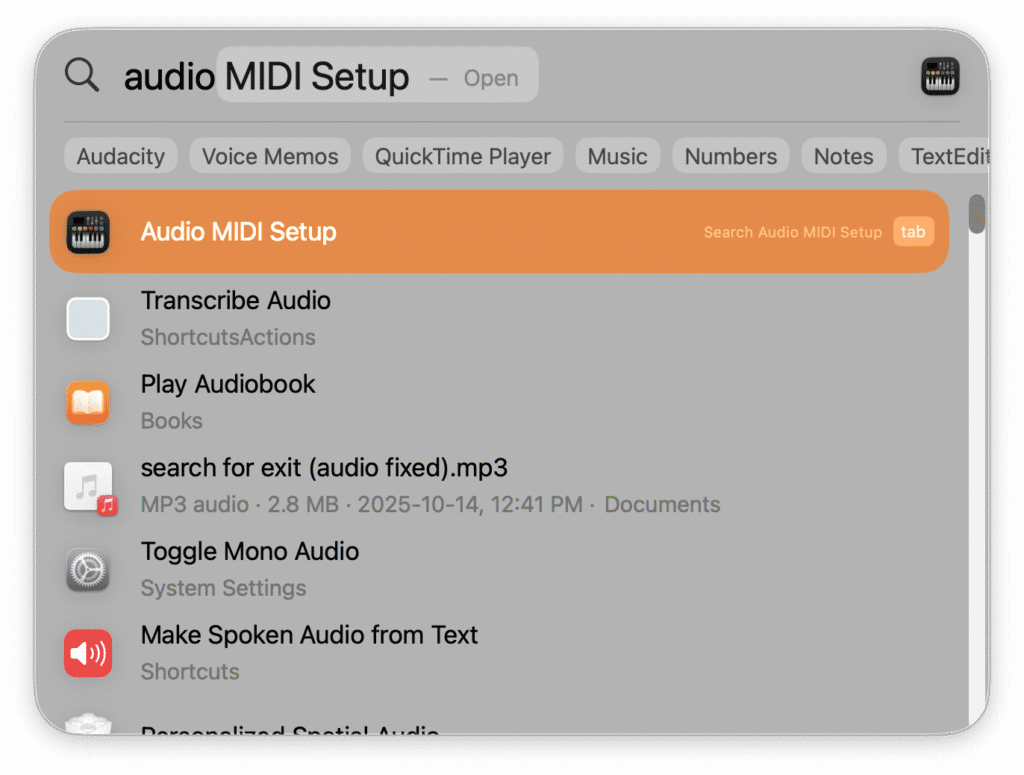
- Press cmd + space to open Spotlight search. Type “audio” to show Audio Midi Setup , and press enter.
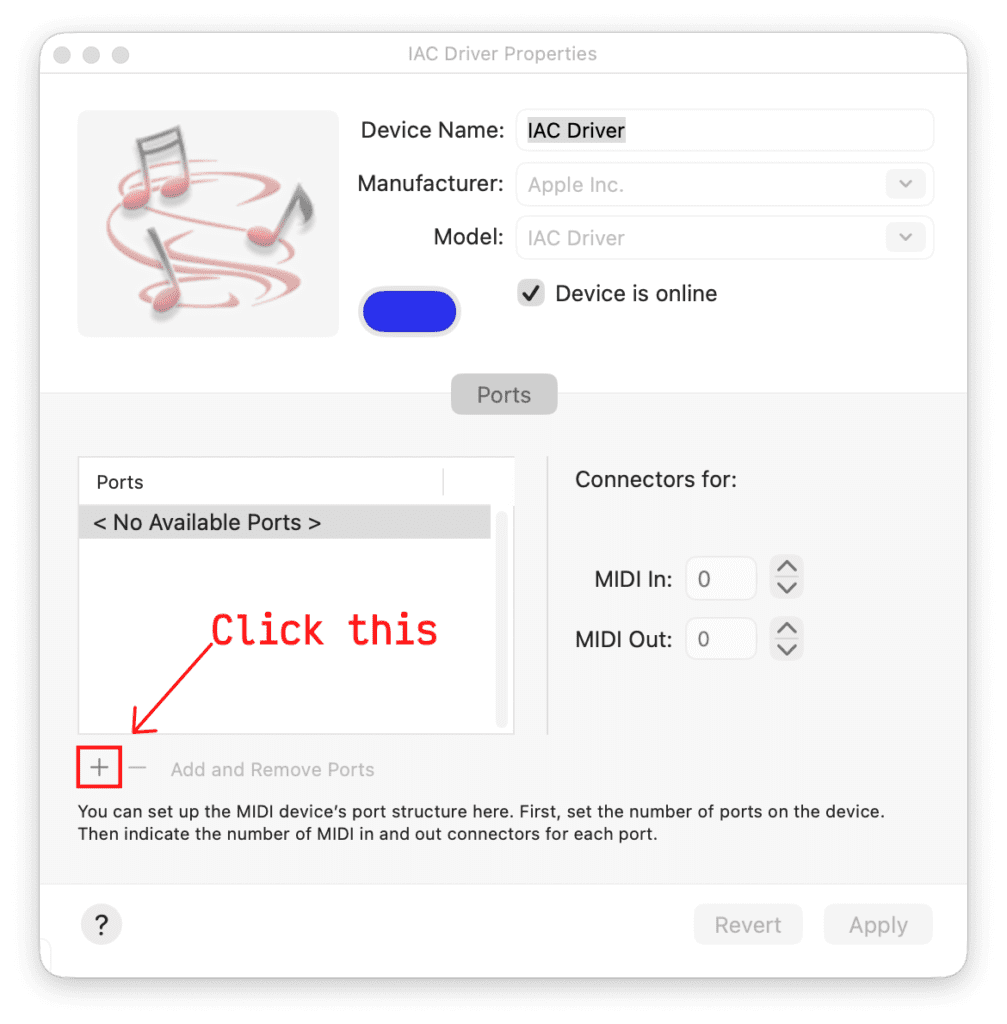
2. In the IAC Driver window click the + button as shown to create a new virtual MIDI port called “Bus 1”.
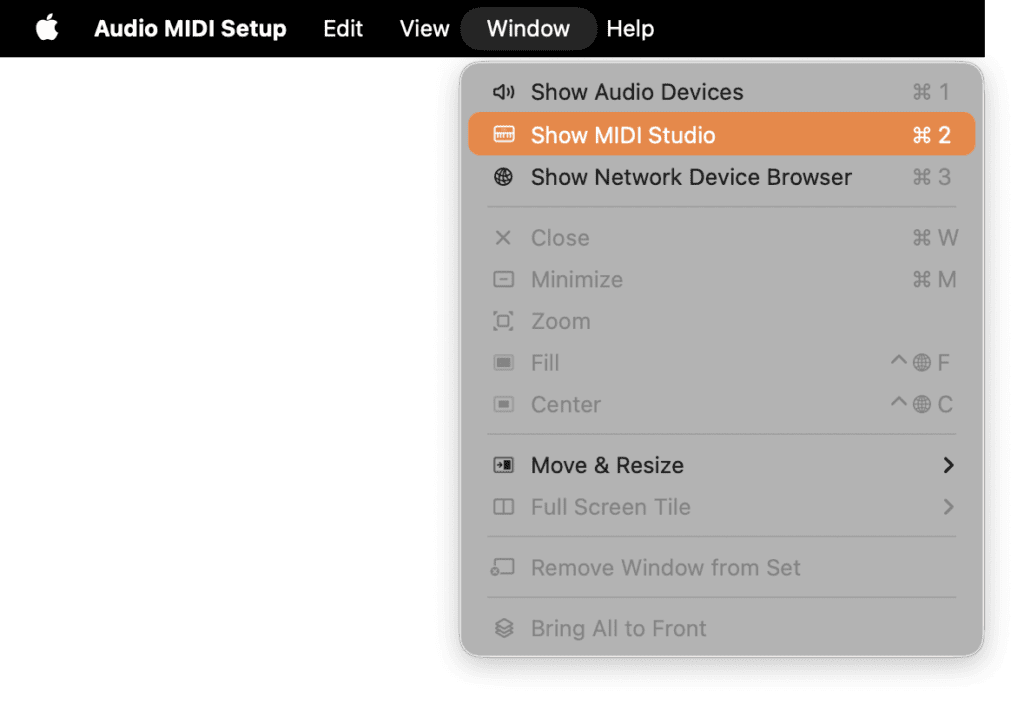
3. If you don’t see the above window, you can open it as shown below. Click Window > Show MIDI Studio.
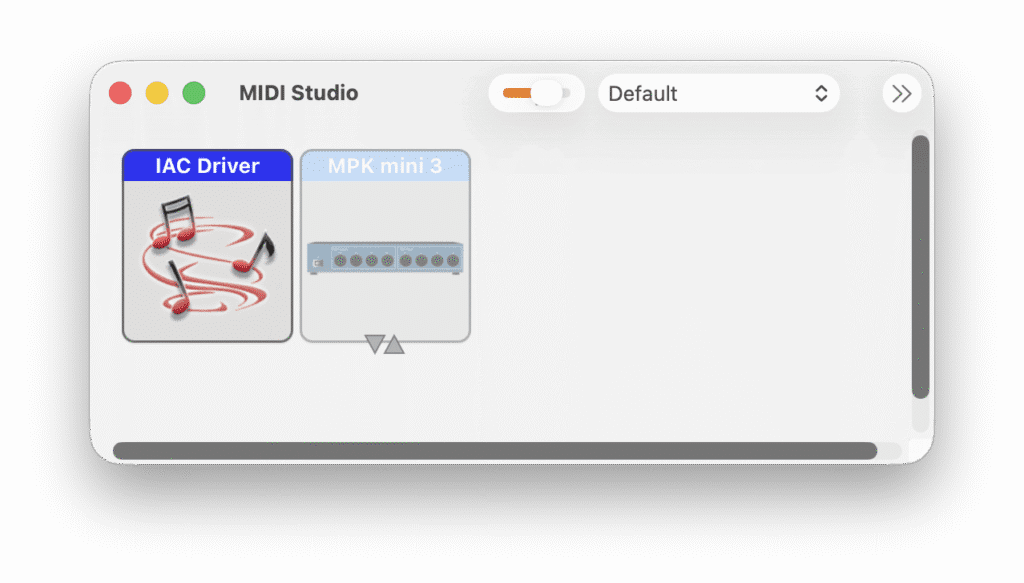
This shows the MIDI Studio window. Double-click the IAC Driver box to open the window shown in step 2.
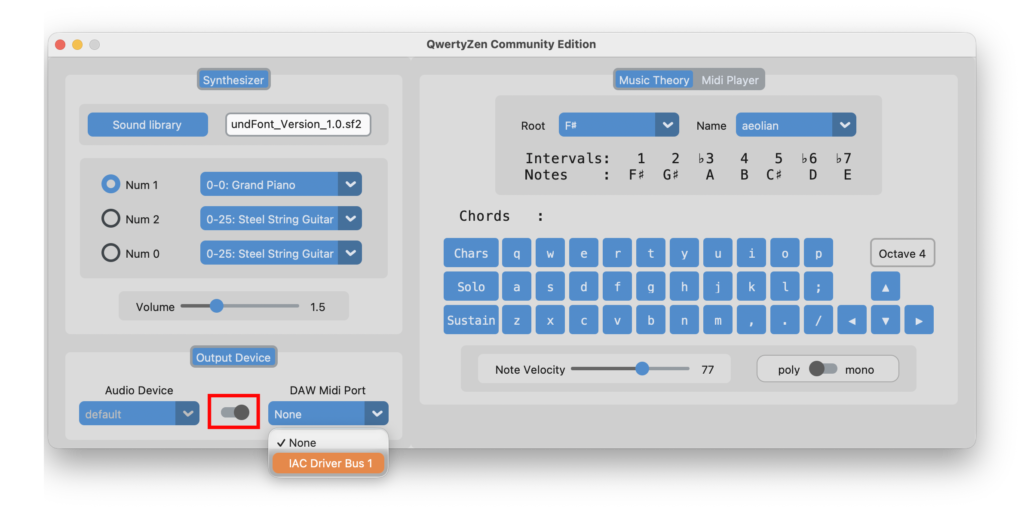
4. To verify the added virtual MIDI port, open QwertyZen Community Edition.
5. Flip the switch shown in the red box toward MIDI Output.
6. Click the DAW Midi Port to show the available ports. Select “IAC Driver Bus 1” to send MIDI output to other apps.
7. Read the other documents to use QwertyZen Community Edition with Garage Band, BandLab, SurgeXT, and other apps.


