
QwertyZen Community Edition has an inbuilt sound synthesizer. You can hear this output from the speaker or headphone as you play the notes. In order to record the audio of your performance in another application you need to install a third party tool called Blackhole 16ch. You can download and install for free from existential.audio.
Like the MacOS inbuilt IAC Driver Setup allows us to create virtual MIDI ports, Blackhole 16ch allows us to create virtual audio loopback cable. This will appear as a new audio device and audio applications can send or receive audio through this for recording. These steps show how to setup audio recording on MacOS.
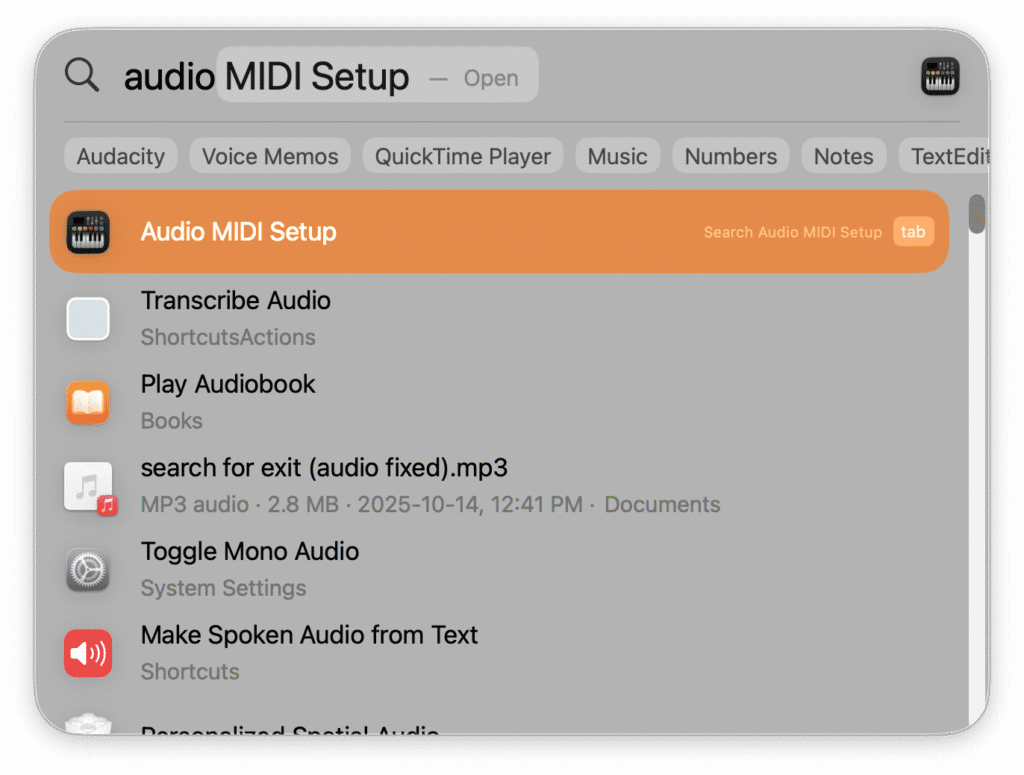
- After installing Blackhole 16ch, launch the Audio/MIDI Setup application.
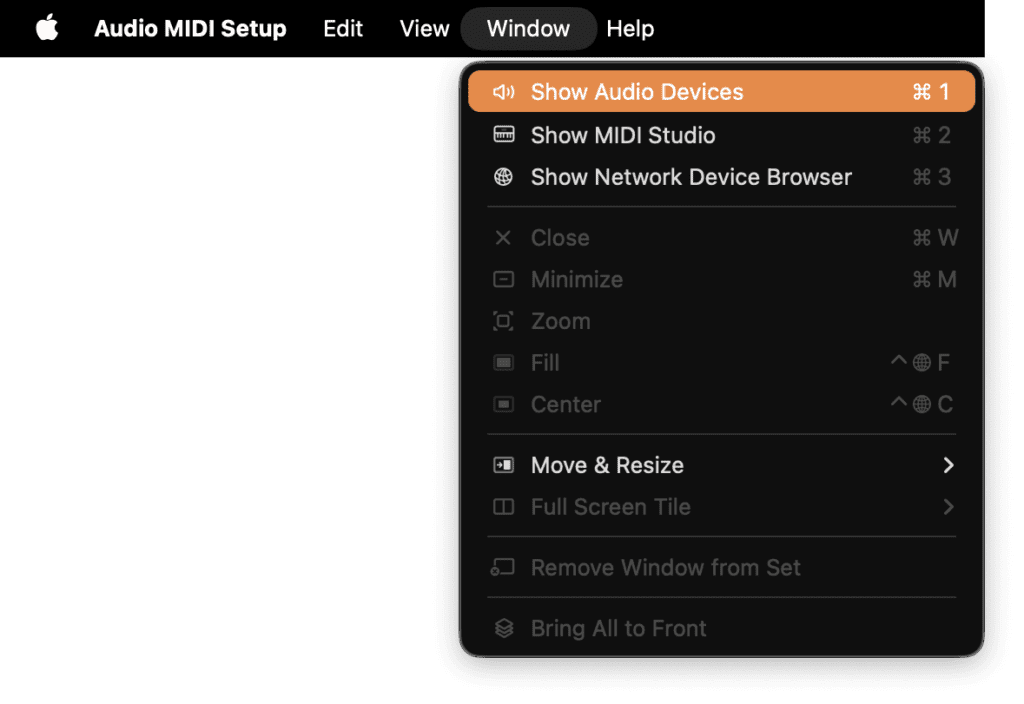
2. In the main menu on the top, navigate and click Window > Show Audio Devices
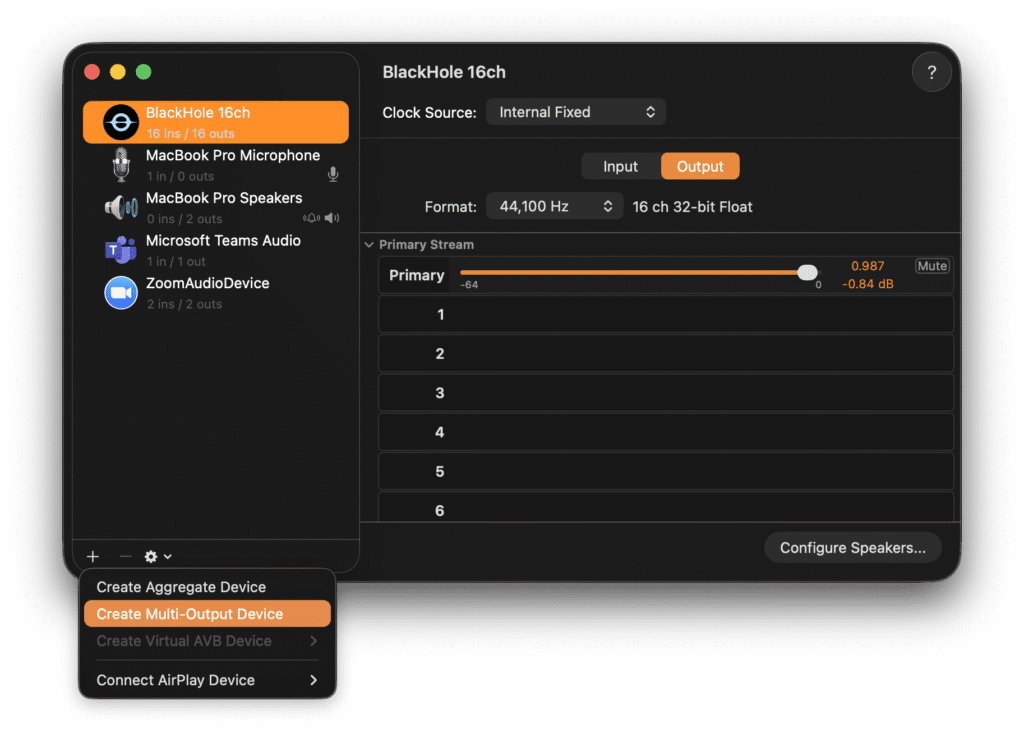
3. If you have installed Blackhole 16ch correctly, it will show up in your Audio Setup window.
4. Click on the + button (bottom-left), and in the menu click Create Multi-Output Device.
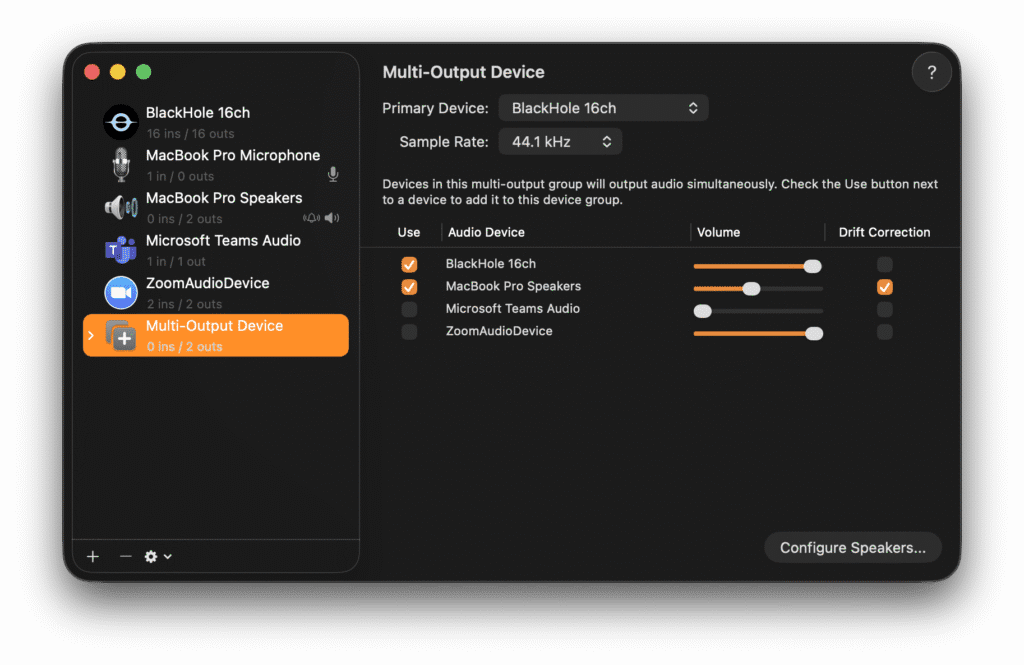
5. In the new multi-output device, check both “Blackhole 16ch” and “Macbook Pro Speakers” or “External headphones”.
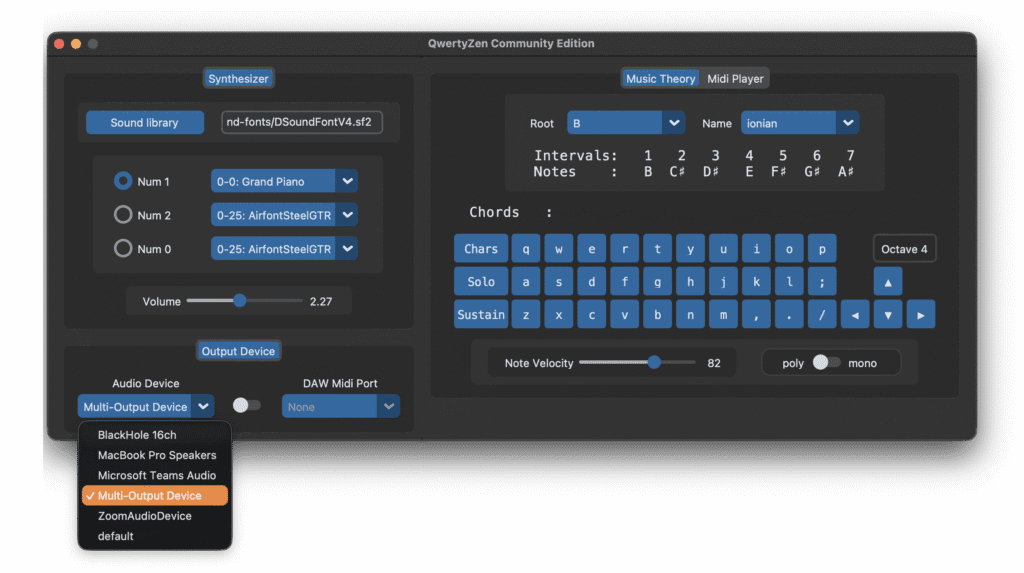
6. Launch QwertyZen Community Edition. Click the Audio Device dropdown, and select “Multi-Output Device”. Play some notes and you will hear the output from your speaker or headphones. The same output is now also going through Blackhole 16ch.
7. Launch the Audacity application.
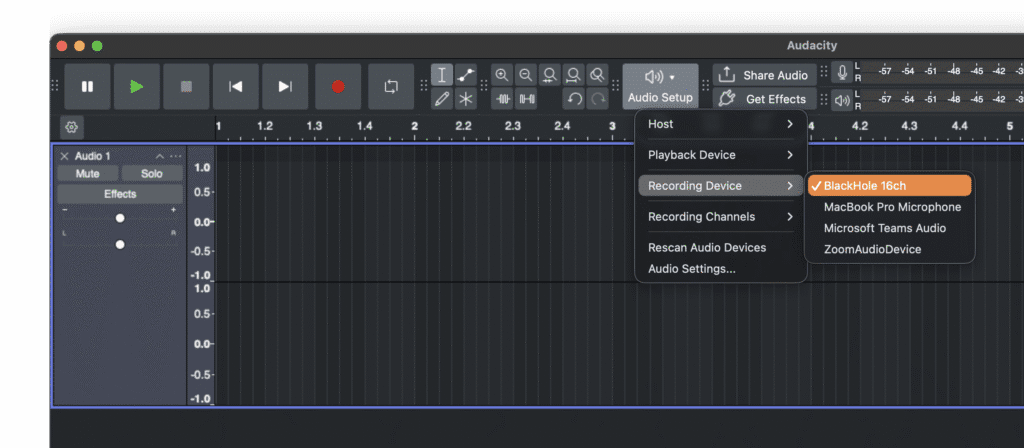
8. Click Audio Setup > Recording Device > Blackhole 16ch
9. Click Audio Setup > Playback Device and ensure your speaker or headphone is selected.
10. Create a new stereo track.
11. Press R to start recording.
12. Press command + tab to switch to QwertyZen. Play your instrument part.
13. Press command + tab to switch to Audacity again and press space to stop recording.
14. Change to another instrument of choice in QwertyZen. Create another track in Audacity. Repeat the recording process to record another track with your previous track recording.
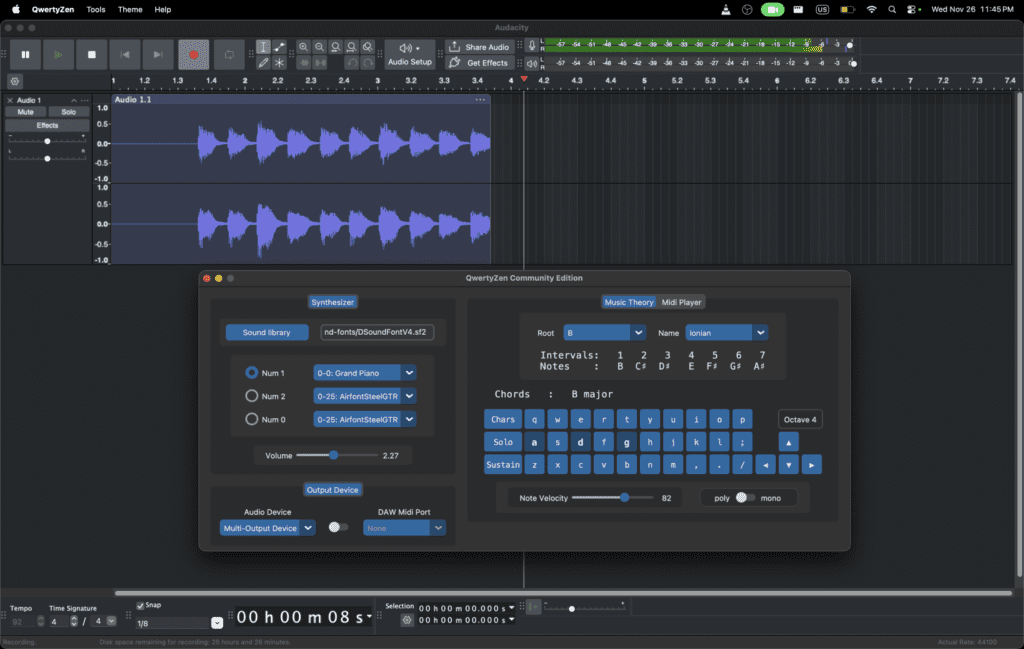
Following these steps you can easily build a multitrack recording. Then create a composition section by section. Record your vocals. In the end you will have a full song in no time. This method will work the same way for all other audio applications. Eg: Audacity, GarageBand, BandLab, Reaper, FruityLoops, etc.
When recording in Audacity you might hear a lag between your playing and when it gets recorded in the track. This is called latency and occurs in all audio applications. Watch the following tutorial to adjust the latency in Audacity to cancel all latency and record in real-time.


